Sunday, May 18, 2008

Microsoft Wireless Laser Desktop 7000

Microsoft announced a new wireless desktop set this week called the Wireless Laser Desktop 7000. The set uses the Cordless Laser Mouse 7000 for the pointing device and a new Aero-themed comfort curve wireless keyboard. The keyboard features buttons that you can program to your favorite websites for one touch access. The cool part about these buttons is that you program them like you do radio stations on your car radio, simply hold them down and you are done. The keyboard uses translucent plastic trim that gives the keyboard a look similar to the Windows Vista Aero interface. The keyboard is set to launch in April at $129.95.

Opera for Mobile Phone

Do you want to browse internet by your mobile phone? In almost newest mobile phone there are mini browser by default. But, how about the older one?

Here is alternatif browser that you can install to your handset. It's Opera Mini.

There are 3 metode to download :

1. Phone Download
To download Opera Mini to your phone, visit operamini.com using your phone's existing Web browser and follow simple on-screen instructions. For additional detailed info, please follow the link below.

http://www.operamini.com/download/wap/

2. PC Download
Download Opera Mini to your computer and transfer to your phone using Bluetooth or USB connection. Choose the manufacturer and model of your phone in our wizard page. The link is :

http://www.operamini.com/download/pc/

3. SMS link
Submit an SMS request from this page. You will receive a download link for Opera Mini directly to your phone. Please visit to

http://www.operamini.com/download/sms/

Choose one of the three methods available to get Opera Mini on your phone.

Friday, May 16, 2008

Changing eye color

Here I will show you how I change eye color the quick and easy way.

Before :


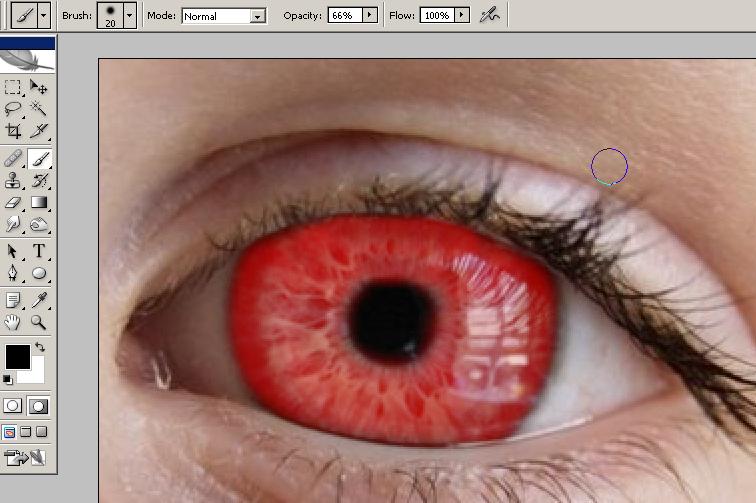
After :


First, open up your image in Photoshop, and zoom in on the eye(s) you wish to color.

NOTE: A quick way to zoom in and out, hold down CTRL and press the =/+ key to zoom in, or the -/_ key to zoom out.


Now, select your paint brush and choose a size appropriate for your image. Next, adjust your hardness. I keep mine about 30% for this.
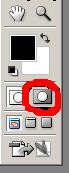
Next, hit Q or click the Quick Mask button(circled in red below) to go into quick mask mode. From here, color your eye in with the paintbrush selected in the 2nd step.


Now, go back to standard mode by hitting Q again, Everything but the eye should be selected.


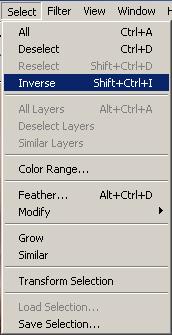
To select the eye, go to Select>Inverse, or hit SHIFT+CTRL+I.


Now, create a layer from the selected portion by hitting CTRL+J. When you have created this layer, and have selected it, hit CTRL+B to bring up the color balance. Play around with the colors till you get what you like. Color balance isn't the only way to edit it, now that you have a layer from the eye, you can edit it any way you like.

Try adding some filters, colors, layers, etc. And post your results here. Good luck!
Written by : joshbond

Choosing the right Windows Vista Edition

It has been confirmed that Microsoft's next generation operating system "Windows Vista" will be available in stores from January 2007. Microsoft has been working hard past few years for this release and I believe this version of Windows is worth buying.

Windows Vista Editions
Unlike Windows XP, Vista comes in 6 different versions and each of them is different in its features and price. Obviously you will be at confusion while choosing from the different versions.

1. Vista Starter Edition
This version is the stripped down version of the basic home edition. This means it has the lowest feature set and security. It is more like a demo for all other editions of Vista. This version is only available in emerging regions like India, Russia, Mexico, Indonesia & Thailand.

2. Vista Home Basic Edition
This is more like Windows XP Home Edition. Just the enough features for casual Internet browsing and entertainment. This edition does not have the important features like Aero UI & Windows media technologies.

3. Vista Home Premium Edition
This is more similar to Windows XP media centre edition. It has all the important features required for normal Home entertainment PC. This edition comes with Aero UI, Scheduled back up feature & premium games. Thus if you are addicted to XP media center edition, this is the vista equivalent for you.

4. Vista Business Edition
Business Edition of Windows Vista is equivalent to XP Professional Edition. It has all the features of Home Premium Edition except parental control and has some additional feature for faxing & scanning. This also has shadow copy - system back up & recovery service to keep your data safe. If you are a XP Pro fan like me, this is the right version to look forward.

5. Vista Enterprise Edition
From the name itself, it should be clear that it is for big enterprises where data protection is important. The major difference between Vista Business and Enterprise is the added data encryption & security features. You only need to buy this version if you are running a business and need more security for your data.

6. Vista Ultimate Edition
If you have all the designed features of Windows vista in one package, you call it Windows Vista Ultimate. It has all the features of Home Premium and Business Enterprise Editions. Unfortunately, I'm yet to learn the prospects of this edition.

Thus if you are an avid gamer, movie enthusiast or an audiophile, Home Premium is the best choice. If you just need a PC for emailing and document processing, Vista Home Basic is your edition. For small businesses, I would recommend Vista Business Edition.

Jason Brown is a Windows Vista enthusiast. For more articles & information on Windows vista, visit his Windows Vista News website.

Choosing Best File Recovery

All file recovery solutions are not created equally. But, choosing one specific software or service company can be overwhelming from the sheer numbers available. For starters, why do some file recovery software cost as low as $29.99, while others range as much as $400? Before addressing these details, and how to choose the best file recovery solution for your situation, let's make sure your files have the best chance to be recovered.

Safety First...

If you are reading this article on the computer you are trying to recover files from, do the following steps immediately (Your computer is always running in the background, and could be overwriting the data you are trying to recover):
1. Close any important documents that are open.
2. Print this article to follow off-line.
3. Unplug your computer (Do not turn off your computer, unplug it now.).
Note: Unplugging the computer stops the computer from running all together. Turning off or shutting down your computer might make the computer go through a process that could overwrite data - your files.

What not to do...

1. Do not run the system recovery disk from the computer manufacturer. This software is designed to get your computer running again with no regard to your data. In other words, it is not designed as a file recovery solution. Just ask the manufacturer if there is a possibility that you could lose data. Yes, is always the answer.

2. Do not install file recovery software on the computer you are trying to recover files from, for this could overwrite the files you are trying to recover. You must have a secondary storage device (i.e. hard disk drive, USB device, etc.) to install the program and to recover the files.

Note to Advanced Users: Even if you are trying to recover a particular partition, and already have a separate partition to install the file recovery software on, do not do it. Since there is possible corruption within the file system at this point, you run the risk of overwritting the partition and files you are trying to recover during the installation process. Better safe than sorry. Install the program on a secondary drive.

File Recovery Software...

Which file recovery software you choose depends on what has happened:
1. Have you accidentally delete a file that you want back?
2. Have you lost a file, or found it damaged upon opening it?
3. When starting your computer, has it failed to boot to the desktop,
invoking a blue or black screen, or an error message (write that message down)?

Accidentally deleted files can usually be recovered by File Undelete software, which lucky for you is the cheapest solution at about $30 USD. If you cannot locate a file afer running the program, the file system (where the files lie) may have been altered, deleted, or damaged. This means, File Undelete software cannot work, and you should use a "complete" file recovery product.

Lost or damaged files require a "complete" file recovery software, which usually costs about $100 USD. (Professional grade recovery software which include multiple recovery functions costs as much as $400). If you cannot locate a file after running the program, or if your computer failed to boot to the desktop, you may need File Recovery Services.

File Recovery Services...

A good rule of thumb at choosing a file recovery service company is, if they develop and sell file recovery software - not just sell them, they should have reliable in-lab services (After fifteen years of developing file recovery software, and knowing who is who in the industry, I can attest to this point). Also, full-scale recovery companies only do file recovery and computer forensics. So, ask a computer related question like, can you install a network with thirty computers? Yes means hang up the phone. Remember, you always get what you pay for and nobody works for free.

In conclusion, the saying in the industry is "file recovery is not, if it will happen, but when will it (and will you be prepared)." Prevention is the best solution. So, to ensure the safety of your files in the future (not to mention the hassle of having to go this process again) consistently do the following:
1. Back-up files daily to a secondary storage device, not on the main hard disk drive where you originally saved them.
2. Defrag your computer regularly. Doing so will increase the probability of a successful recovery if you ever encounter this problem again.
3. At least once a month confirm your back-up is working properly. This is a common problem.

By: Ken Roberts,

Hard Drive Recovery Tools

Hard Drive Recovery and the recovery of apparently lost files and date can often be restored with some simple know hows or data recovery software. What a great world we live in.

Computers are one of the best tools that has come into the hands of man since the convenience of toilet paper. Your computer offers you the ability to store all your valuable files and data in one convenient place and in most cases makes it portable.

But in the event of a Hard Drive Crash or the the loss of important or valued data, files, pictures, movies etc., that wonderful computer turns into an expensive paper weight taking up space on your desk or kitchen table.

Sometimes we tend to convince ourselves that our lost or deleted files are gone forever and that hours or weeks of work to replace them is required. But in many cases lost files and data, even a Hard Disk Recovery can be done in moments.

Lost or deleted files can be located and recovered. Often you may just find it sitting in your trash. To recover it, simply click and drag it onto your computer desktop. If you would like to replace it back into it's original place or folder simply right click it and choose that.

On occasion, you start up your computer and can't find that file you worked on so hard. Before you start yelling out to your spouse or children a simple search of files on your computer may bring it up. Often we quickly save our files not noticing where our computer decided to save them to. Often they are in a folder we have not thought of. To find that file click on "Start" and use your search function there. Type in part or all of the name of your file and you may just find it !

In the event that you or someone has accidentally deleted your wanted file or data then all is not lost. Data recovery software will search your computer and restore it for you. Imagine a file being like a painting. It is painted over white ready for next use, but the painting, or in this case the data, is still there underneath. You just need to remove the white paint. Data recovery software does the job for you. It scans your computer for recoverable items and asks you if you want to recover any or all of them.

You may be surprised what you find!

Hard Drive Recovery Tools are also available. When your computer starts choking on memory, freezing, crashing to a halt or re-starting itself or you hear strange noises coming from your hard drive then a crash may well be on the way. You'll probably start seeing serious looking error messages, note these done before you click them away.

In most cases free computer support is available. Click your "Start" button, then right click on "My Computer" then choose "Properties" then "Support". It should show you a phone number and times to ring for free computer support. Support will walk you through steps to rectify your problems but may end-up recommending you completely recover your computer losing all files on your "C Drive". Effectively your computer returns to the day you brought it home from the shop.

The good news is that a full recovery of your computer doesn't involve your "D Drive" so placing important and large files there is good advise. It also frees up your "C Drive" which does most of your work and the all the complaining within your computer.
By : Bharat Bista

CSS Tools that make easy

There are many available tools to help make web development projects quicker and more productive. Aside from a handy text editor or WYSIWYG editor like Dreamweaver, you can find plenty of tools and utilities that can greatly increase development speed, reduce debugging and testing time, and improve quality of the output. The tools described below are a variety of utilities, optimizers, testing, and debugging tools aimed towards helping developers create websites more efficiently.

1. CSS Grid Builder

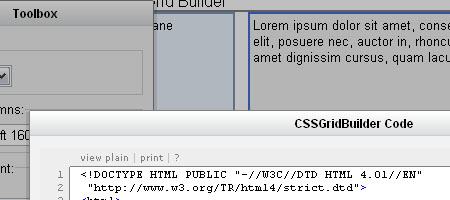
CSS Grid Builder - Screenshot

CSS Grid Builder is an online GUI for customizing the YUI Grids CSS - a lightweight CSS framework developed by Yahoo! that comes with over 1000 page layout combinations. The CSS Grid Builder allows you to rapidly generate a CSS-based, web-standards compliant page layout in a matter of minutes (or even seconds). Once you’ve got the page layout the way you want it, all you have to do is press "Show Code" and it generates the HTML for you.

You don’t even have to host the CSS file on your web server (saving you some bandwidth and maintenance hassles), the generated code links to the appropriate stylesheet found on Yahoo!’s Developer Network API.

2. CSS Sprite Generator

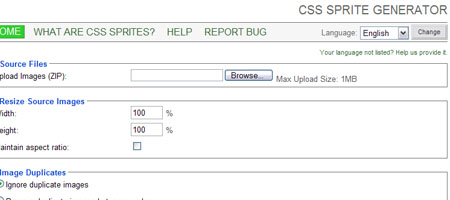
CSS Sprite Generator - Screen shot

Using CSS sprites is an excellent way to improve web page performance by reducing the number of HTTP requests needed for rendering images, but it can take a lot of planning, measuring, and coding if done manually.

CSS Sprite Generator allows you to upload all of your images (you have to place them in a .zip file first) and it will combine the uploaded images into a single sprite and also generate the CSS for you.

3. Blueprint: A CSS Framework

Blueprint - Screenshot

Blueprint reduces the amount of CSS code you have to write by including common styles that developers typically use such CSS reset and page layouts. A demonstration of a web page that uses Blueprint can be found here.

4. CSSTidy

CSSTidy is an open source application that parses, fixes, and optimizes CSS code to reduce file size and also to standardize CSS code formatting automatically. It also finds and removes redundant styles and properties. You can adjust CSSTidy’s settings to your preferred compression level but even the default setting can often give you 30% compression according to the creators of CSSTidy. Check out the "before and after" examples to get a feel for how CSSTidy works.

5. logicss: CSS Framework

logicss - screenshot

logicss is a collection of CSS files and PHP utilities aimed at reducing web development time. It allows developers to create customizable fixed, elastic, or fluid (liquid) layout grids. Check out the preview of their CSS code generation tool.

Thursday, April 24, 2008

PCMAV RC 1.2 is Available

Do you want to download PC Media Anti Virus 1.2?

Here are the link, please check..

Ziddu | Rapidshare | 4shared | Bizhat

If you want to update the virus database, check this :

Ziddu.com | Bizhat

Create a simple form in Microsoft Word

by Dennis O'Reilly

Microsoft Office includes industrial-strength tools for creating forms of all types, but the Access database and InfoPath information manager are overkill for my meager form requirements. If I need to collect basic information from a bunch of people in a hurry, such as for planning a potluck lunch, I stick with the simple form-creation tools in Word.

Word 2007 groups the options found on the Forms toolbar in Word 2003 into the Legacy Tools button in the Controls section under the Developer tab. These form fields are a subset of Office 2007's Content Controls, which allow you to populate forms automatically from external sources, extract form data as XML for use in other applications, and perform other operations. I may have use for these advanced features someday, but for creating a basic form, they're too much.

Start with a template and a table
Whether you're using Word 2007 or Word 2003, create a template to serve as the master copy of your form document. The simplest way to format the form is by using a two-column table: The left column lists the field names, and the right one holds the data you're collecting. In my example form for planning a company potluck lunch, I created fields for the respondent's name, department, and preferred event date, as well as for the food and beverage each person plans to bring.

Text boxes work for the name, department, and food fields, and I use a drop-down menu for the beverage choice. I also use a drop-down menu for the date preference in Word 2003, but Word 2007 adds a control that lets people select a date from a monthly calendar.

To select a form control in Word 2007, place the cursor in the table cell where you want the control, click the Developer tab, and choose the appropriate icon in the Controls section, or click the arrow in the bottom-right corner of the Legacy Tools icon and select the control from the drop-down list.

The Legacy Tools drop-down list of form controls in Microsoft Word 2007

Click the down arrow on the Legacy Tools icon to insert a form control.

(Credit: Microsoft)

In Word 2003, place the cursor in the table cell you want the form field to appear in, right-click an empty area of the toolbar, select Forms to open the floating Forms toolbar, and choose one of the controls on the toolbar.

The floating Forms toolbar in Microsoft Word 2003

Select a control from the floating Forms toolbar to insert it in a document in Microsoft Word 2003.

(Credit: Microsoft)

Once your form control is in place, right-click it and choose Properties to customize it. Another way to access the control options is by selecting the Properties button in the Controls section of the Developer ribbon in Word 2007, or by clicking the Form Field Options icon on the Forms toolbar in Word 2003. For text fields, you can change the default text that appears (by adding "Click here to enter text," for example). You can also specify that a number, date, or other type of text be entered; set a maximum length; specify a text format; and even set a macro to run when data is entered, or when the field is exited. This is also how you enter items for drop-down lists, and set the size and default values of checkboxes.

The Drop-Down Form Field Options in Microsoft Word 2003

Add items to the drop-down form control by entering them in the Field Options dialog box and clicking Add.

(Credit: Microsoft)

There's a more elegant way to ask people to select their preferred date in Word 2007: choose the Date Picker control, which adds a month-by-month calendar to the form that appears when you select it and choose the down arrow to the right of the current entry. The Content Properties dialog lets you specify the resulting date format.

The Calendar Control Properties dialog box in Microsoft Word 2007

Set the date format used in your form's calendar control via its Properties dialog box in Word 2007.

(Credit: Microsoft)

When your form controls are in place, save the file using the .dotx format in Word 2007, or .dot in Word 2003. When you're ready to distribute your form, open a new Word document, and choose the template from the list that appears. Save the resulting file with the .docx format in Word 2007, or .doc in Word 2003. Now the form is ready for distribution, but first make sure your recipients can add text and otherwise access its fields. In Word 2007, place the cursor in the field, click the Properties button in the Contents section of the Developer ribbon (or right-click and choose Properties), and make sure "Contents cannot be edited" is unchecked. In Word 2003, ensure that the lock icon at the far right of the Forms toolbar is selected.

When the forms are returned, you can collect the data as comma-separated values in a text file (.txt) in Word 2003 by selecting File > Save As > Tools > Save Options, checking Save data only for forms, and clicking OK > Save > OK. In Word 2007 you should be able to do the same by clicking the Office button, choosing Save As > Word Document > Tools > Save Options, selecting the Advanced tab in the left pane, scrolling to the "Preserve fidelity when sharing this document" section in the right window, checking "Save form data as delimited text file," choosing Plain text (.txt) in the Save as type drop-down menu, and clicking Save > OK. Unfortunately, I couldn't get this function to save the form content when I tested it. I'll keep experimenting, though, and I'll let you know if I find the solution.

Tomorrow: Customize the Details view in Windows Explorer.

http://www.cnet.com/8301-13880_1-9891483-68.html